
Hardware
“The best investment is in the tools of one's own trade.” — Benjamin Franklin

Here’s a roundup of all the hardware I use and how it helps me do more.
Before you freak out at me suggesting a $120 mouse among other “expensive” items. Just know that I am a cheapskate. And every one of these purchases hurt. But upgrading your hardware is probably one of the easiest and fastest ways to increase your productivity as a marketer. I’m easily 20-50% faster with my current mouse. Is that worth it for me when I can earn more based on the amount of work I get done? Yes, yes it is. I honestly ROI’d on my mouse the same day I got it, if not the day after.
Laptop
Tech: M1 Macbook Air
Now, I’m not an Apple fanboy.
But in my opinion, you NEED a Mac if you want to be as productive as possible.
This video explains my thoughts on this pretty well👇
A quick summary though:
- Macs don’t really get slow after years of use
- They almost never crash
- Very rarely do they get viruses
- The touchpad makes moving around, zooming and panning in spreadsheets & design tools effortless
- The tech on MacBooks these days is so good, that it means I don't need a lot of other equipment:
- An external mic
- A webcam
- A battery bank (long battery life)
- iPhone <> Mac integration is pretty dope (universal copy-paste, airdrop file transfers, external webcam functionality, etc.)
- As with a lot of the stuff in this list, resale value is high due to the brand So you can always find a buyer for your machine and get at least 60% of what you paid for it - meaning you’re effectively able to rent the best tech for a couple of hundred dollars per year. Worth it!
The annoying things about Macs:
- Itunes/transferring large amounts of files from iPhone - no drag-and-drop functionality like Windows 🫢
- If need USB/SD card access a lot you’ll need an adaptor for the MacBook Air. Costs like $30.
- Yeah, that’s pretty much it..
Phone
Tech: iPhone
I don’t use my phone much for work.
But it does come in useful occasionally being able to seamlessly jump from iPhone <> Mac when I need to.
Use them together to:
- Send screenshots quickly + in high quality from phone to Mac via airdrop/copy-paste!!
- Copy & Paste text from phone to Mac & vice-versa - Good for 2-factor auth codes/passwords etc.
- Notes synced between both devices so I can make notes at home on my Mac and then have them ready for me on my phone when I go out for a meeting (with my accountant for example)
- Really good OCR recognition on both Mac & iPhone, so you can copy and paste text from an image someone sends you, or a screenshot on your phone and paste it straight to your Mac
- You can now use phones as webcams, yay. I don't really use this tho
Mouse
Tech: Logitech MX Ergo
Think of using a bad mouse as a tax on every move you make and you’ll realize why buying an expensive mouse is totally worth it.
My initial reaction to using my current mouse was:
Wow, I’m like twice as fast with this!

Now initially I thought a tracker-ball style mouse would feel a bit weird to use, but after a ton of research, I was convinced it was more ergonomic and efficient than a laser mouse.
With that & the safety of being able to return it if I didn't like it, I went for it and bought what, at the time was an insanely expensive piece of kit.
3 years later - no regrets.

Well, if anything, I regret using a trashy mouse for so long, as it deffo slowed me down.
Now, if you’re not quite feeling the tracker ball, you’ll still want to get a better mouse that has programmable buttons.
The more popular MX Master 3 from Logitech does just that if you like the standard laser-style mice: MX Master 3
The best thing about the Logitech mouse selection is really the FREE software that comes with it + the seamless integration with their keyboards.
Program it with whatever you want:
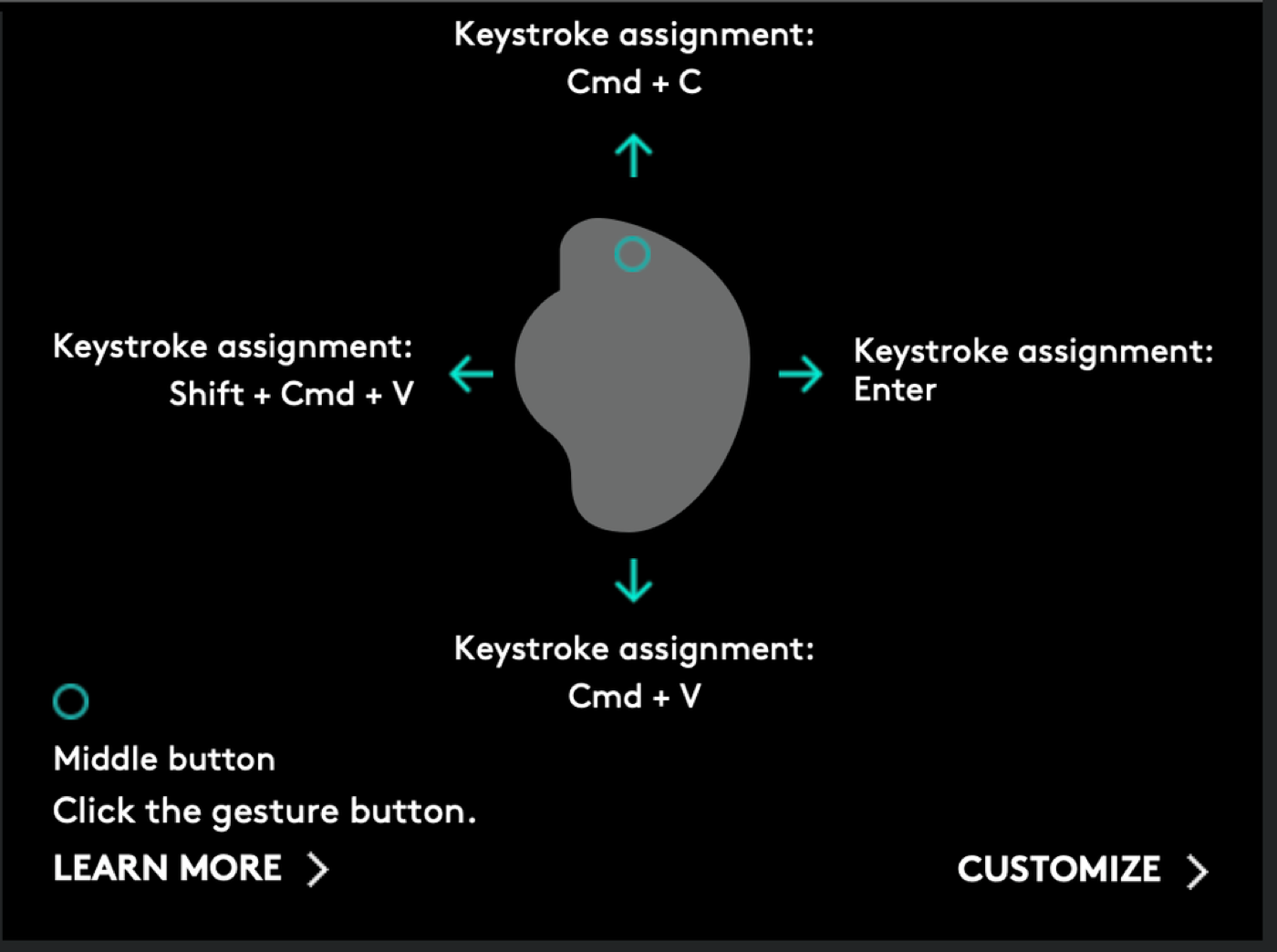
e.g.
- Copy, paste & ENTER with 1 hand (I save a ridiculous amount of time with this)
- Go back & go forward a page
- Swipe between screens with one hand (replaces external monitors for me)
- Skip forward and backward in videos with one hand
Keyboard
Tech: Logitech MX Ergo
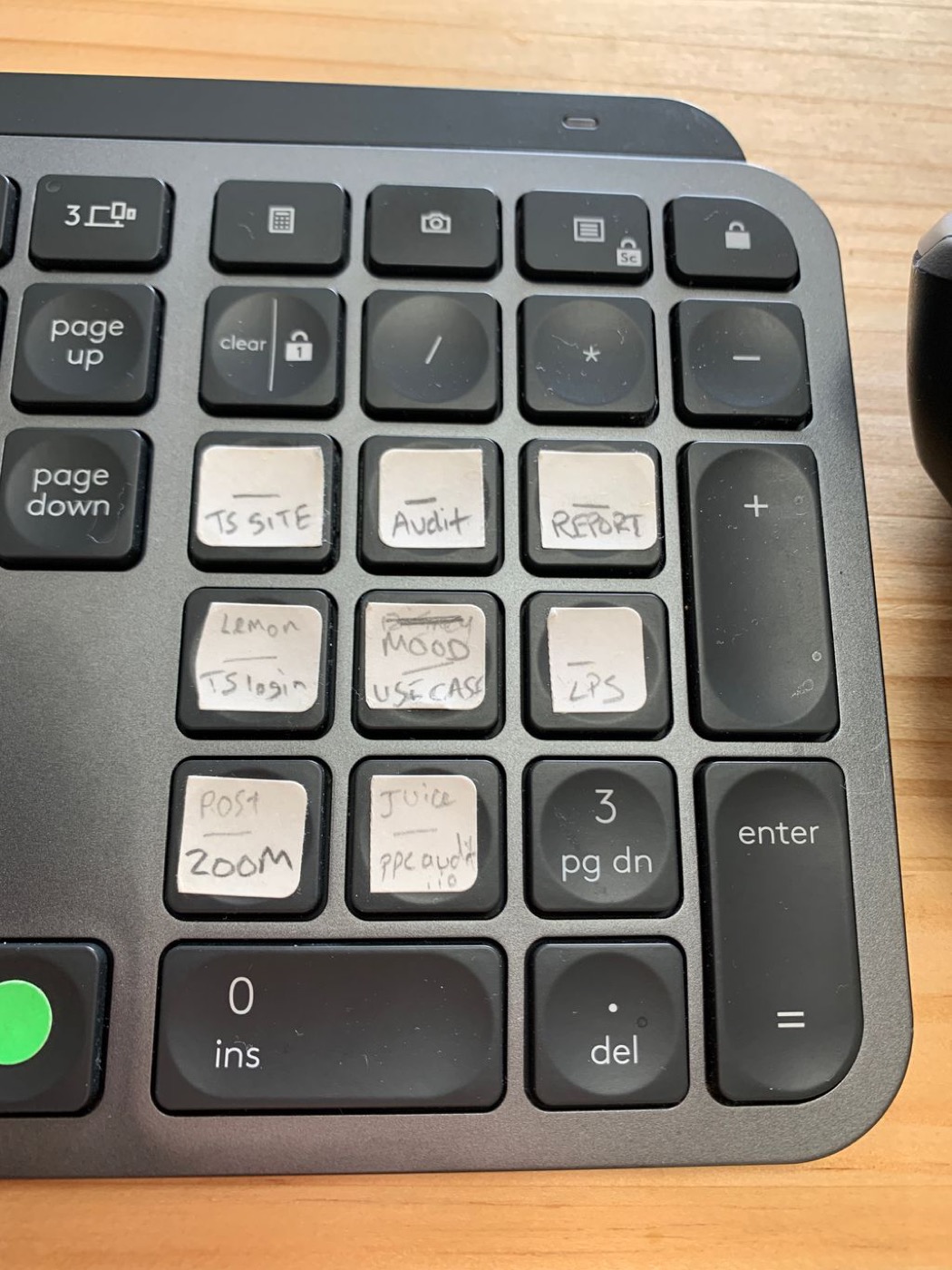
Makes typing so fast - Buttons are easy to program and can connect to up to 3 machines.
Use it to:
- Take screenshots straight to the Desktop with 1 button press
I use the F3 button for it:
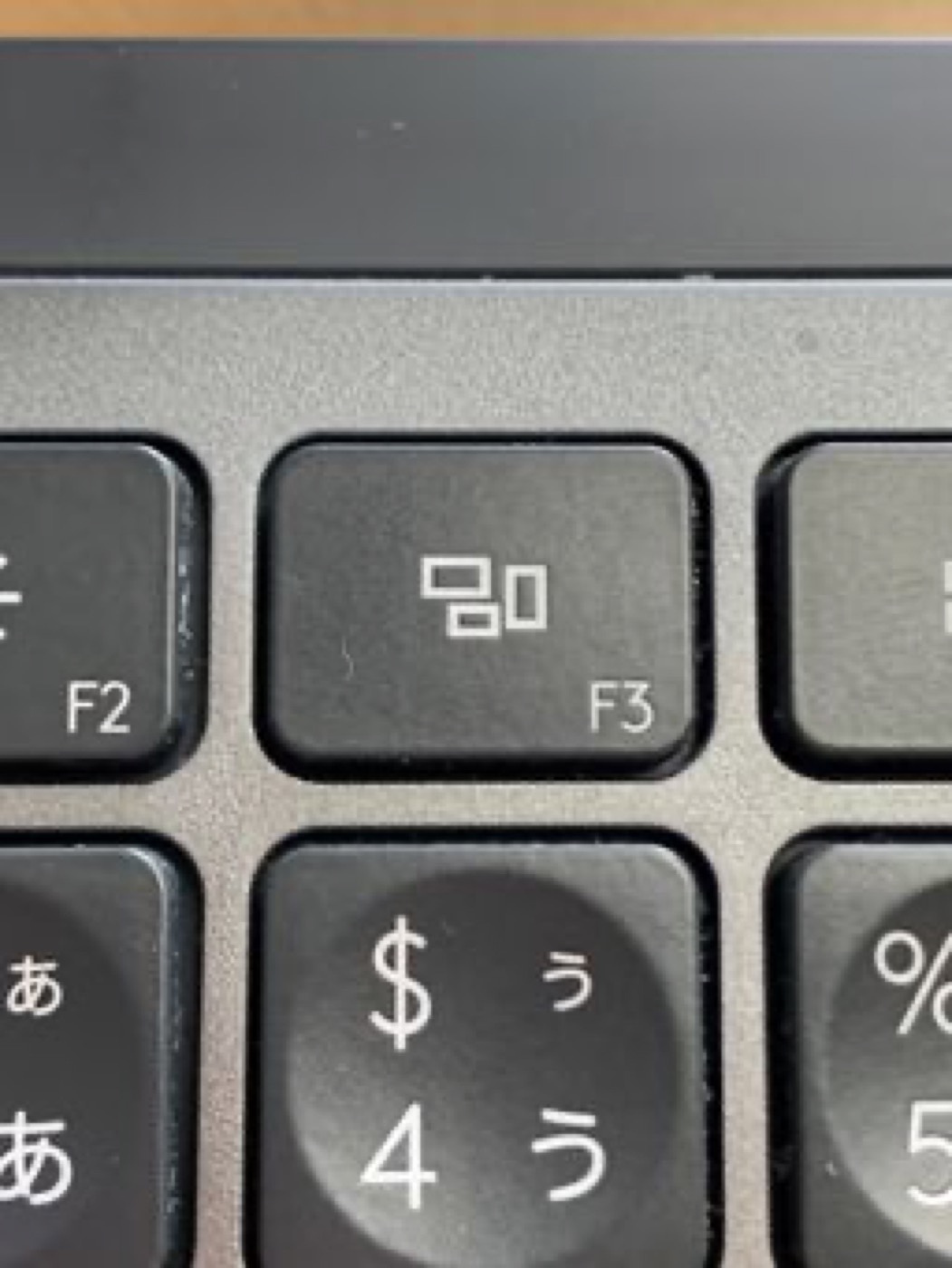
- Take screenshots to your Clipboard with 1 button press (to easily paste in Slack etc)
I use F4 for this. I use this like 70% of the time, so useful:
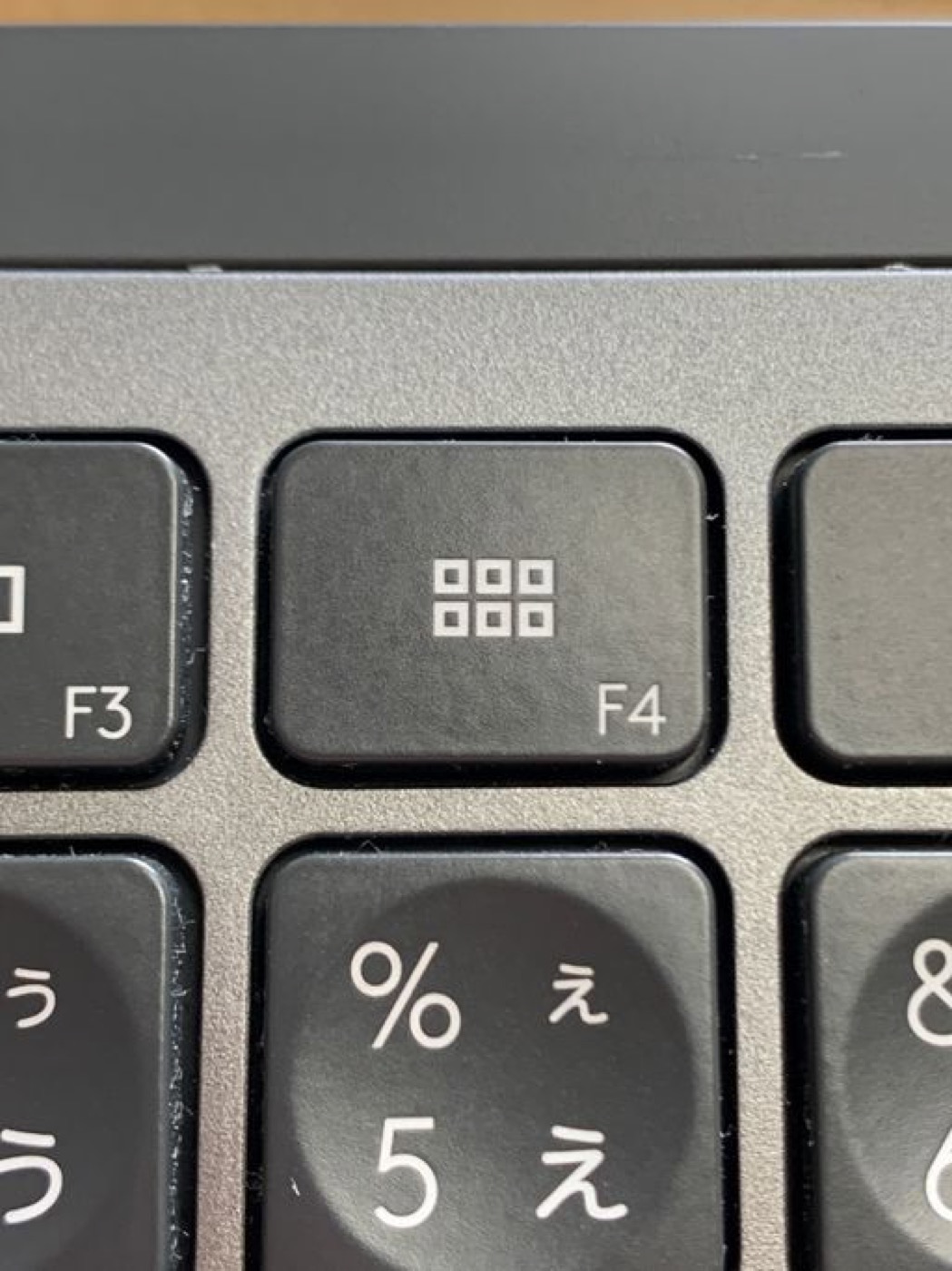
Screens/Laptop Stand
Life is too short to be hunched over all day.
Get a good laptop stand/monitor and work for longer without your back giving out.
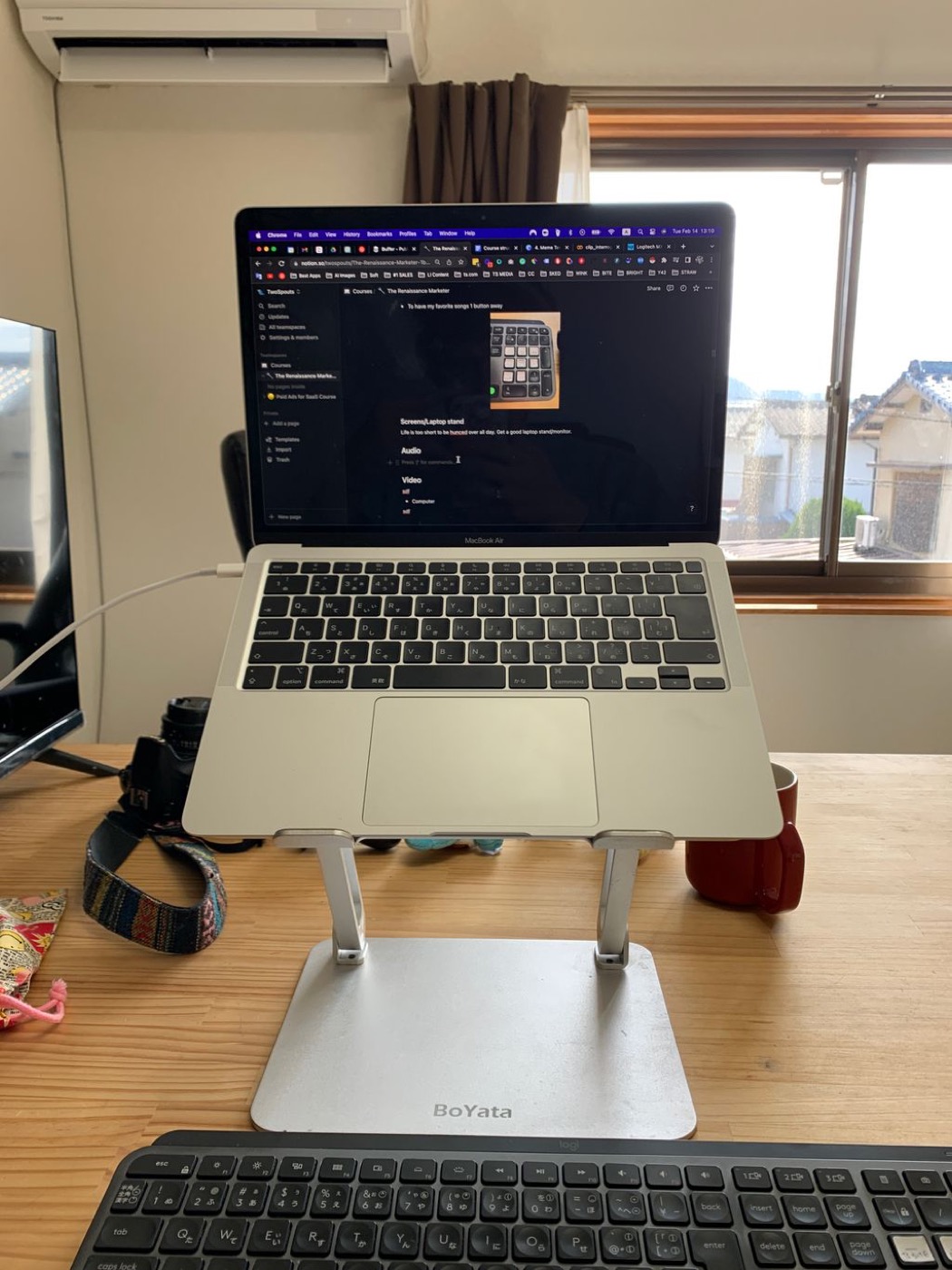
I have an external display:
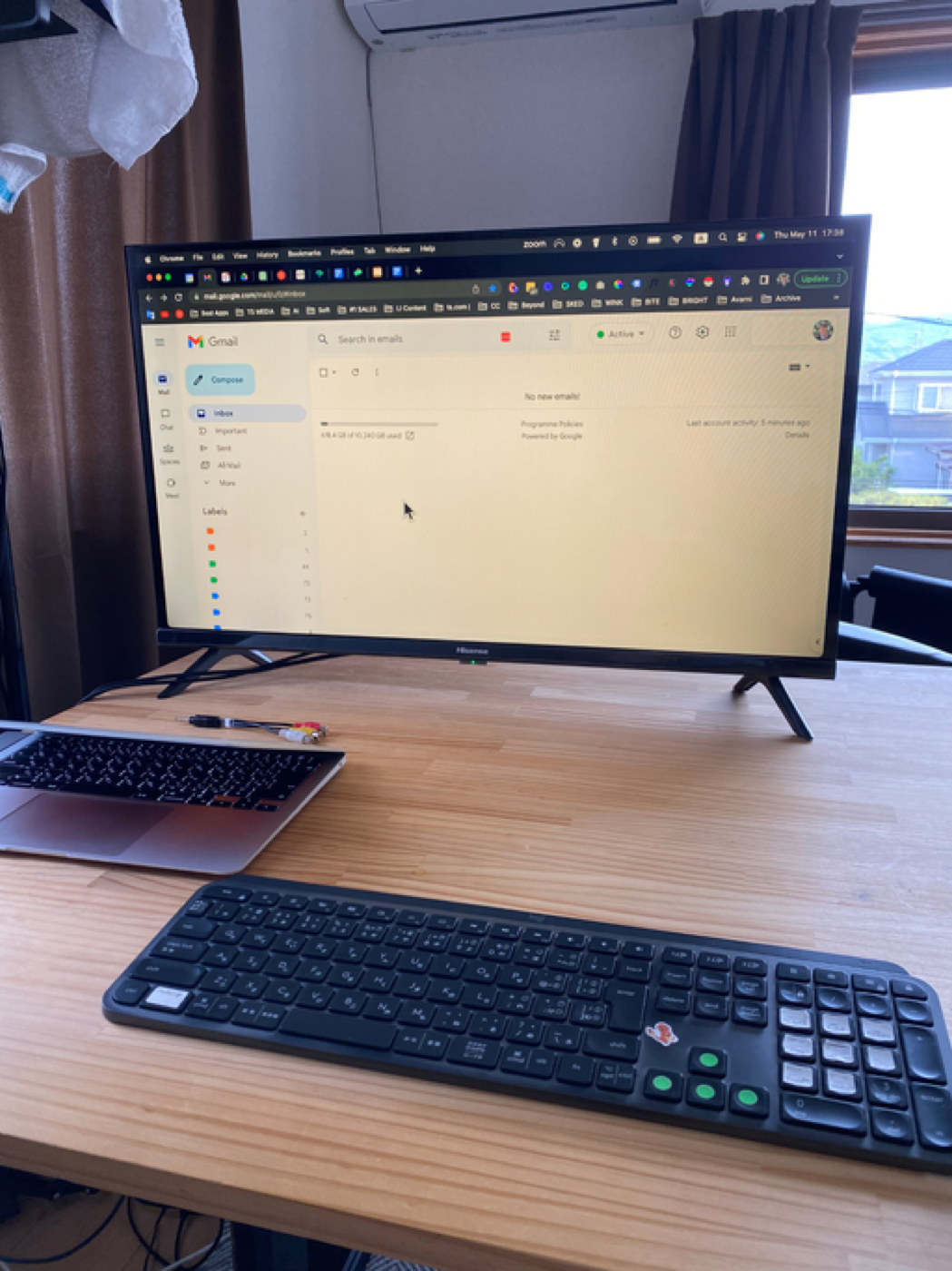
But as I will cover in the 🍦Software section, I don’t really use it much, due to having virtual desktops I can easily slide between.