
Software
“Never mistake motion for action.” — Ernest Hemingway

Here’s a roundup of all the software I use to get more stuff done.
General Tips
Make Your Cursor Bigger
This sounds dumb…but try it.
It makes a huge difference to eye strain.
Less eye strain = more work getting done:
Mac Specific
Add Virtual Desktops for Task Switching
As much as task switching (doing several things at once) has been shown to reduce efficiency, we all need to task switch occasionally otherwise we’ll drop the ball on import stuff. Things like:
- Checking Slack
- Jotting down something in your notes
All don’t need to interrupt your flow if you have multiple virtual desktops in place for dedicated programs/tasks.
I typically have this setup from left to right:
- Slack
- Main Chrome Browser (with all my important stuff like email, calendar, etc.)
- Secondary Chrome Browser (I have a secondary “Chrome User” that I use for managing my ad accounts
- Notes
- Zoom - if I'm on a call
This setup lets me slide between tasks insanely fast, no clicking required:
Hot Corners
I mainly use these to quickly switch to the desktop & get something I need, like an image:
You can set these up for all 4 corners of your screen.
Shortcuts/Productivity
Tool: Alfred
I use this on average 40 times, per day…yeah a lot:
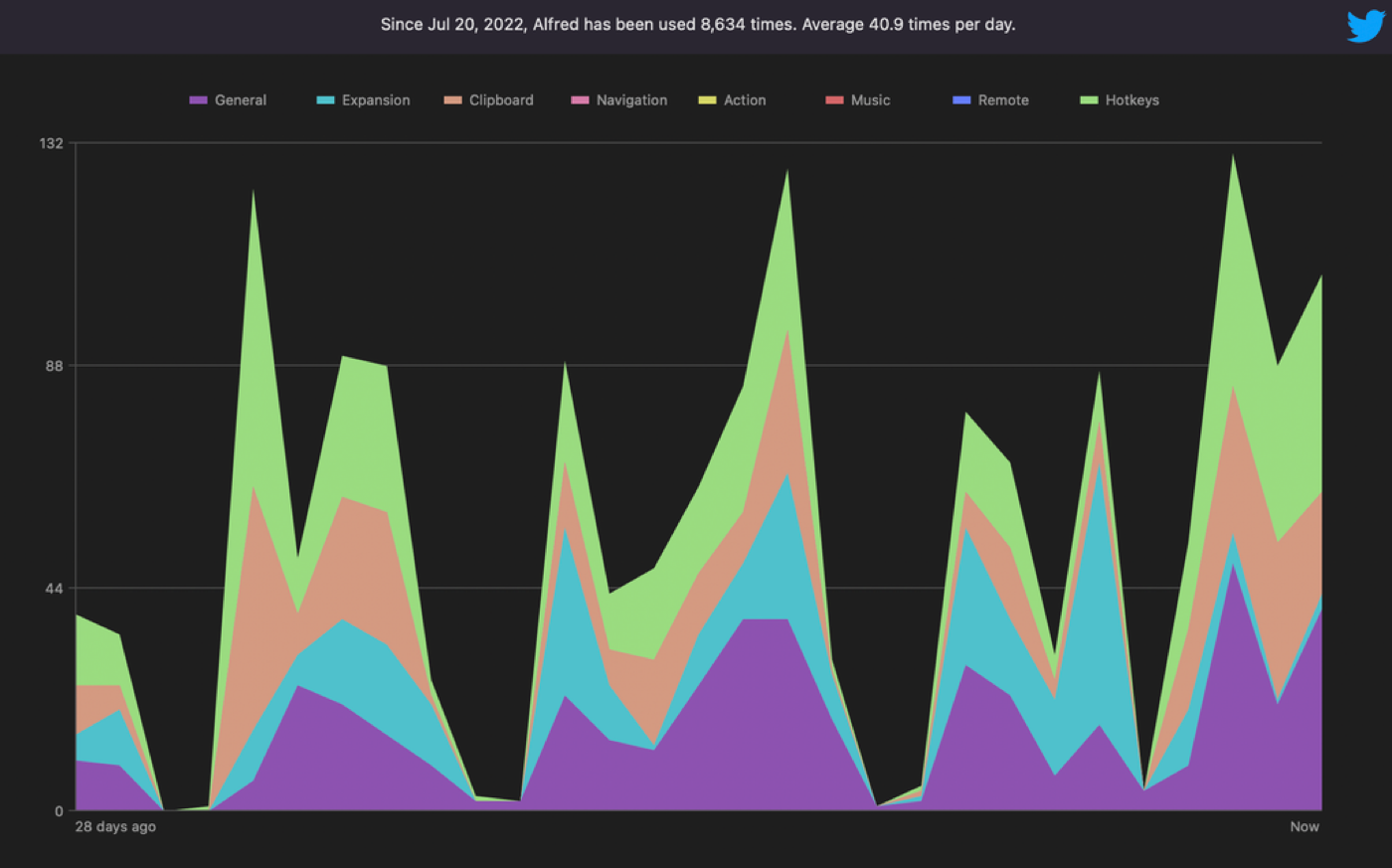
Quick Launch Apps & Quick Googling
I do Ctrl/cmd + C > Ctrl/cmd + Space > Ctrl/cmd + V > Enter so often it saves me tonnes of time running searches for things:
It works especially well if you’re not currently working in your browser but say in a chat app like Slack. With this shortcut, you can quickly Google from any app.
The process slow + fast:
Access your Clipboard History
Ever really needed something you copied 5 ‘copy-pastes’ ago?
With Alfred, you can access your full copy-paste history and search, filter & preview for all the things you need.
I can't stress how freaking useful this is!!
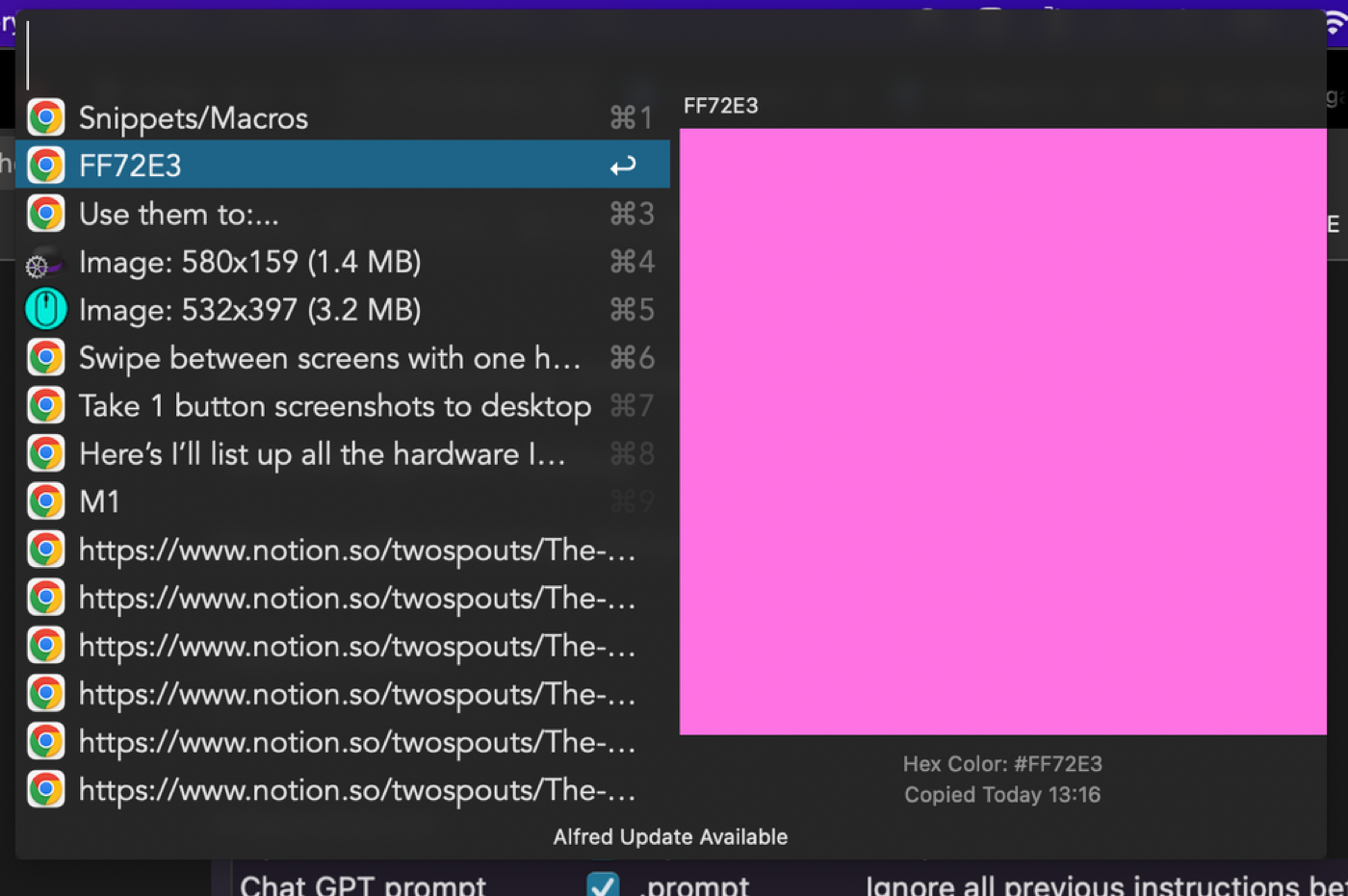
Use it to:
- Access that password you just made but forgot
- Access links you copied but overwrote with something else
- Find that exact color #HEX you used just a few minutes ago by searching for #
- Filter for all images you copied & pasted
- Bulk copy and then paste text/links
If you’re worried about security here, just know everything is stored locally on your device. You can also set your clipboard to auto-delete its history on a rolling schedule. I set it to 24 hours.
Paste stuff you always need quickly (Snippets/Macros)
Use it to:
- Save time completing online forms (God knows we do enough of that as marketers)
- Always have useful links ready (zoom link, website URL, your email, your phone number)
In this example, I use some of these snippets:
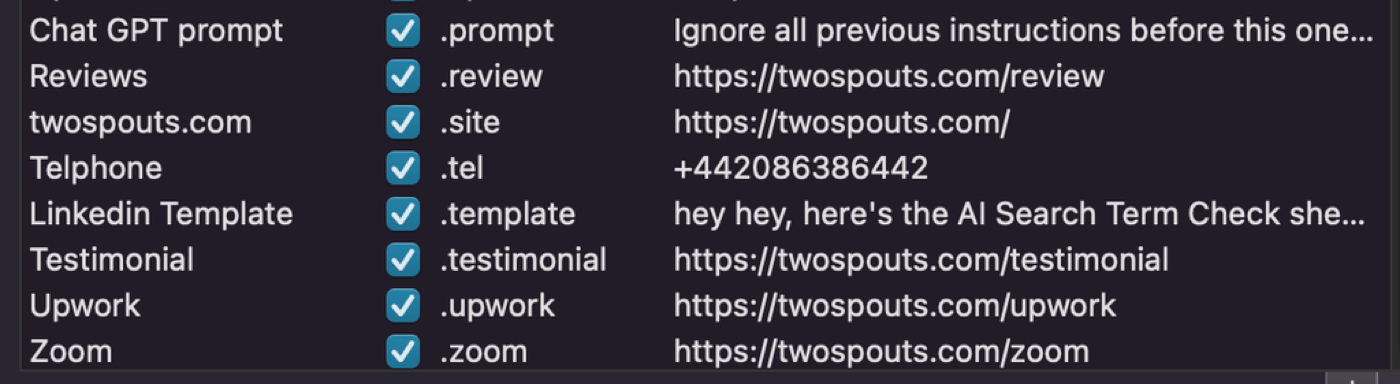
Check out the section on redirects to see how I made some of the quick links you see above like: https://twospouts.com/upwork Which goes to my Upwork profile. This lets you create easy-to-type short links for whatever if someone asks for it at an event or when you’re away from your computer.
One-Click App/Link Launches
Tool: Alfred Workflows
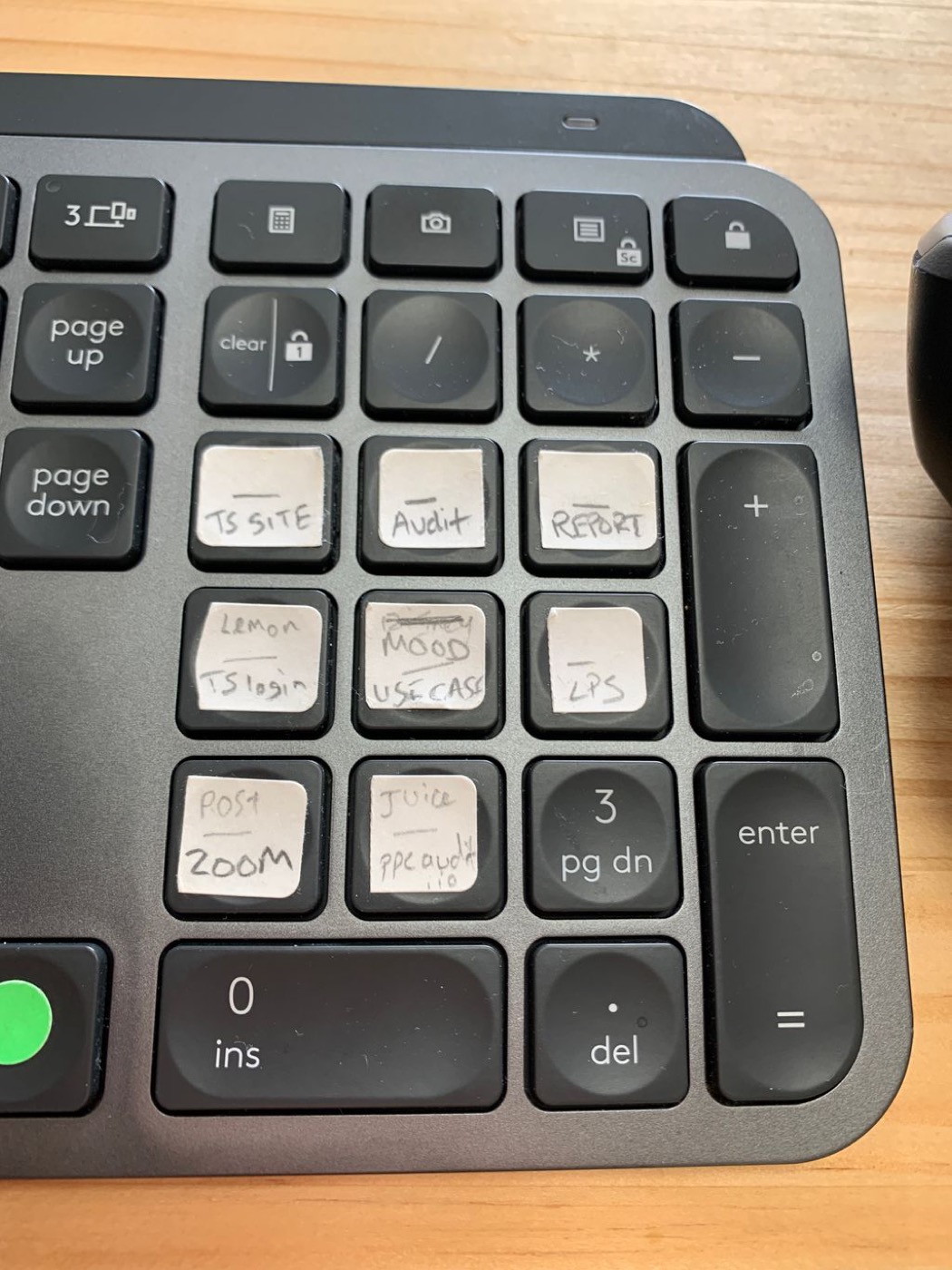
Example of using this: cmd + Num Pad 1: Opens my go-to Zoom room link so I don't have to recreate a Zoom Room every time for people I speak to or find the link in my calendar.
I have a bunch of other quick launches there.
Advanced Searching Online
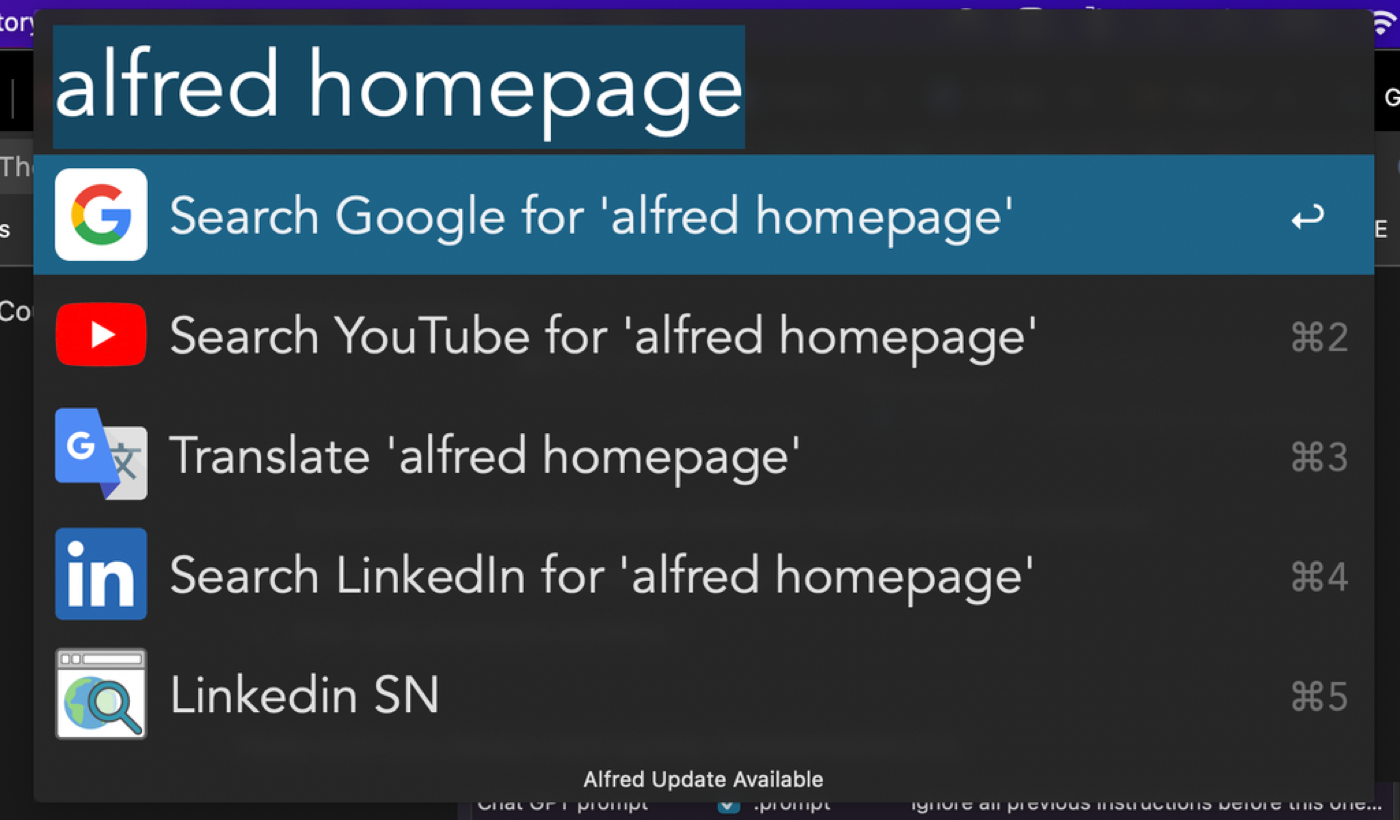
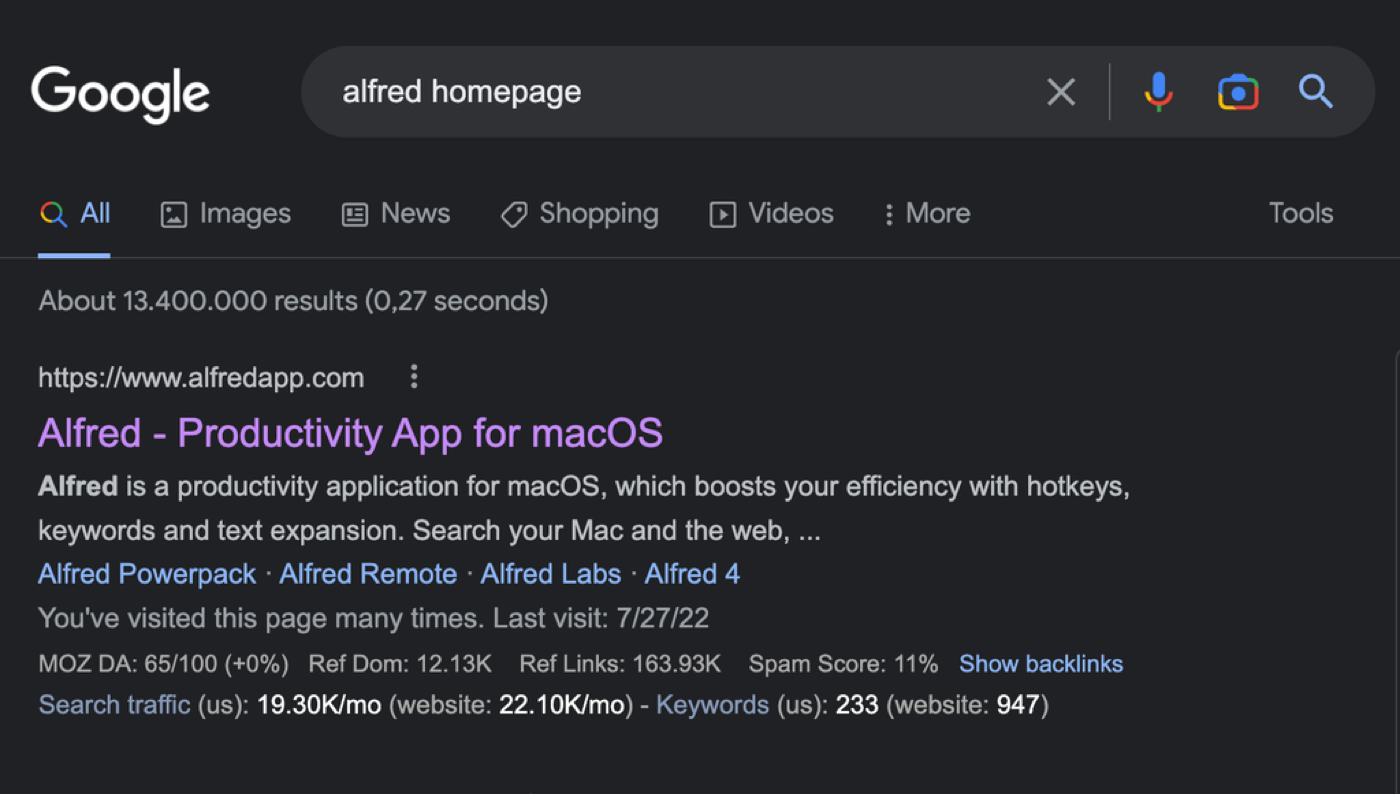
- To search Google click number 1 or just hit enter:
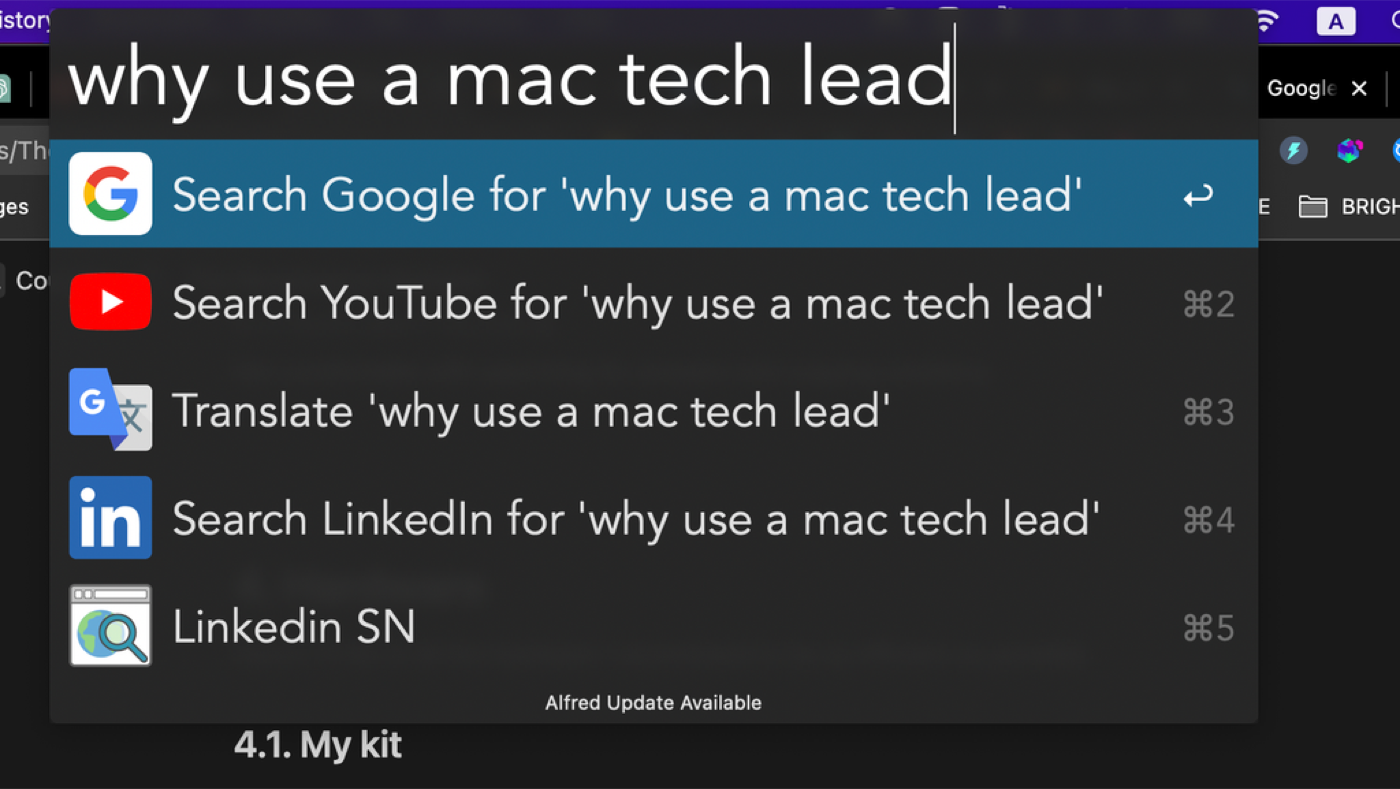
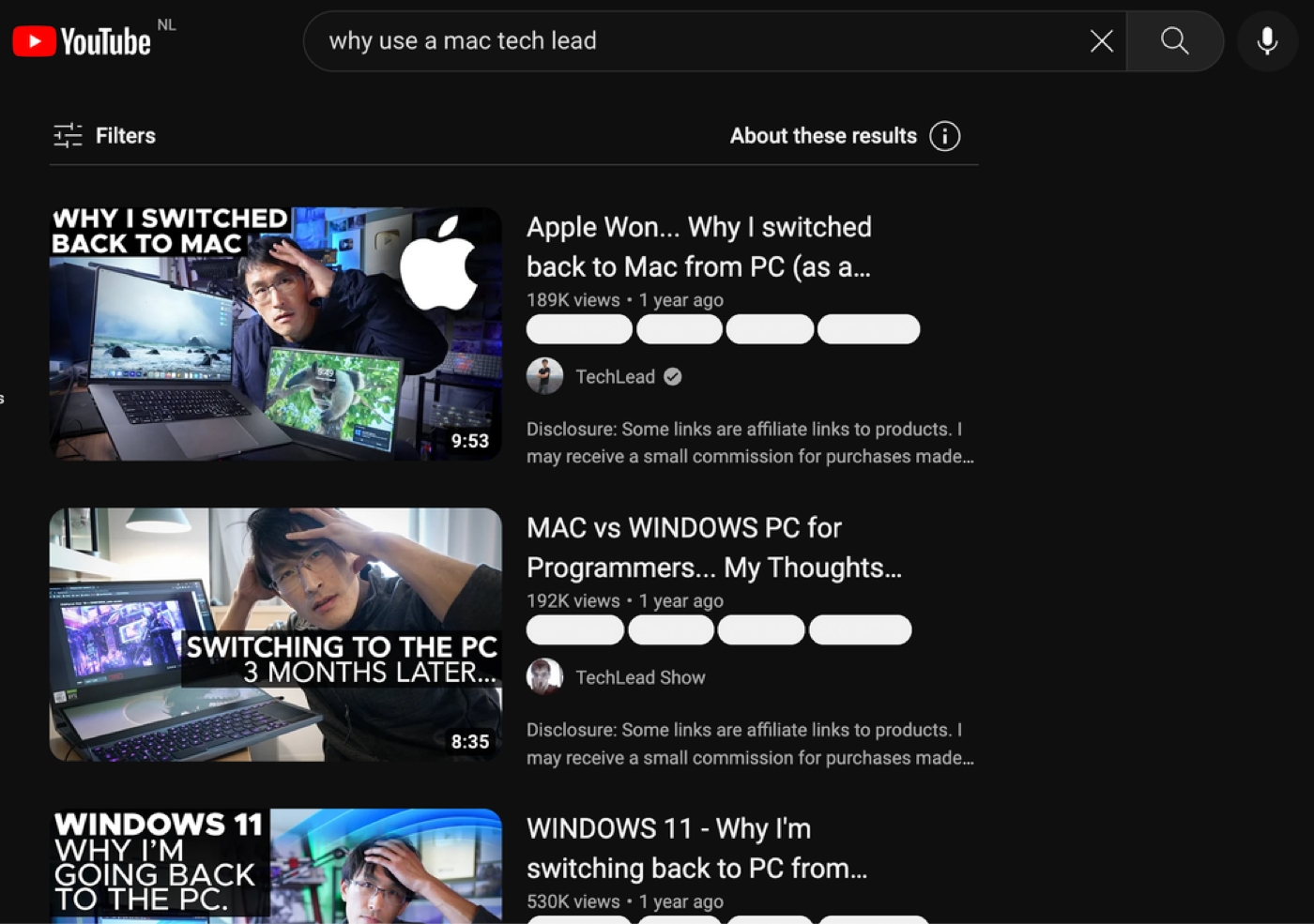
- To search YouTube click number 2 (or cmd + 2):
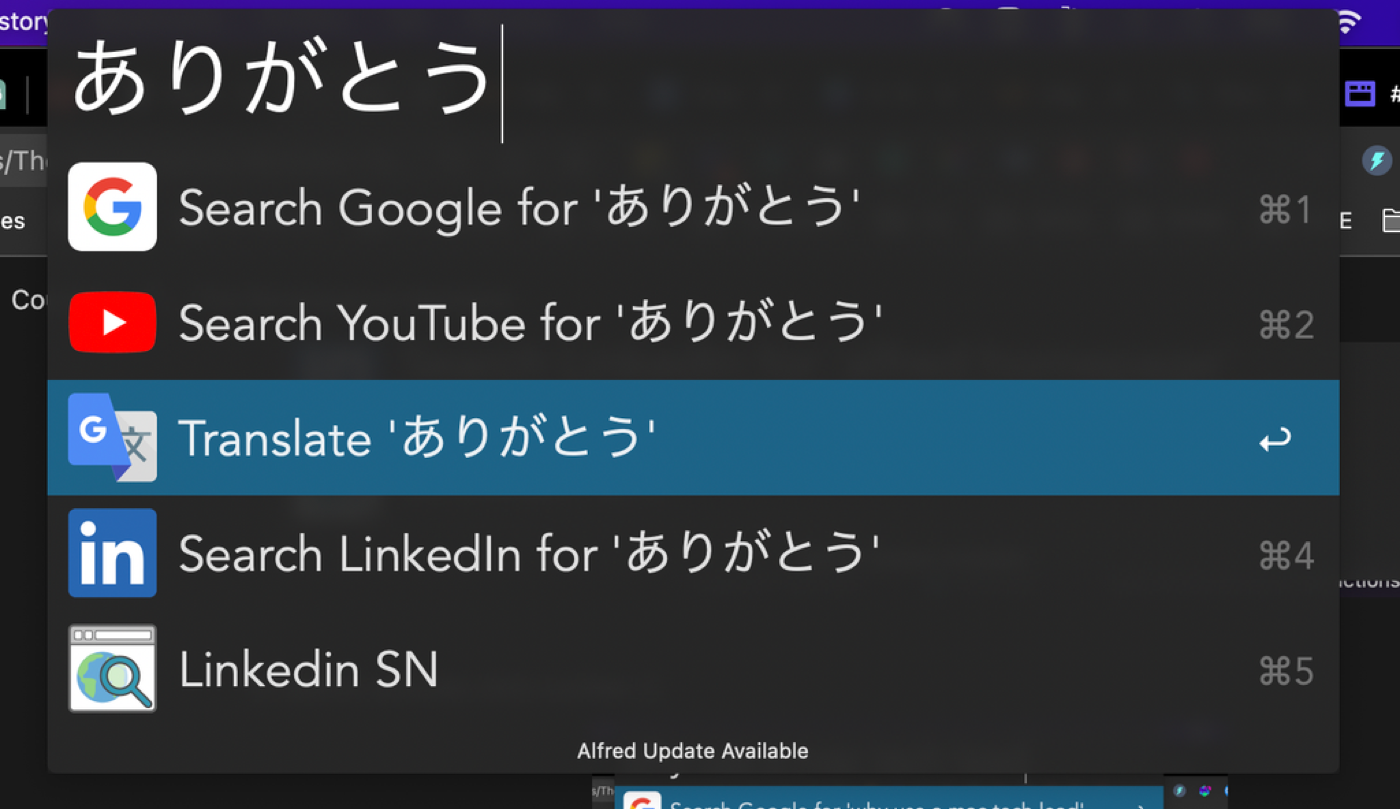
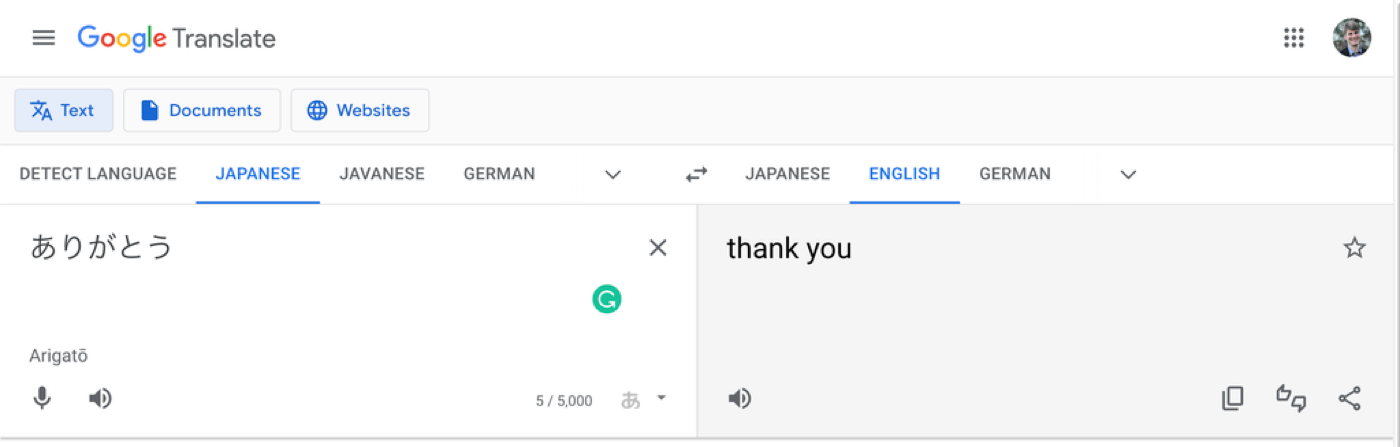
- To translate something from Japanese to English click number 3 (cmd + 3):
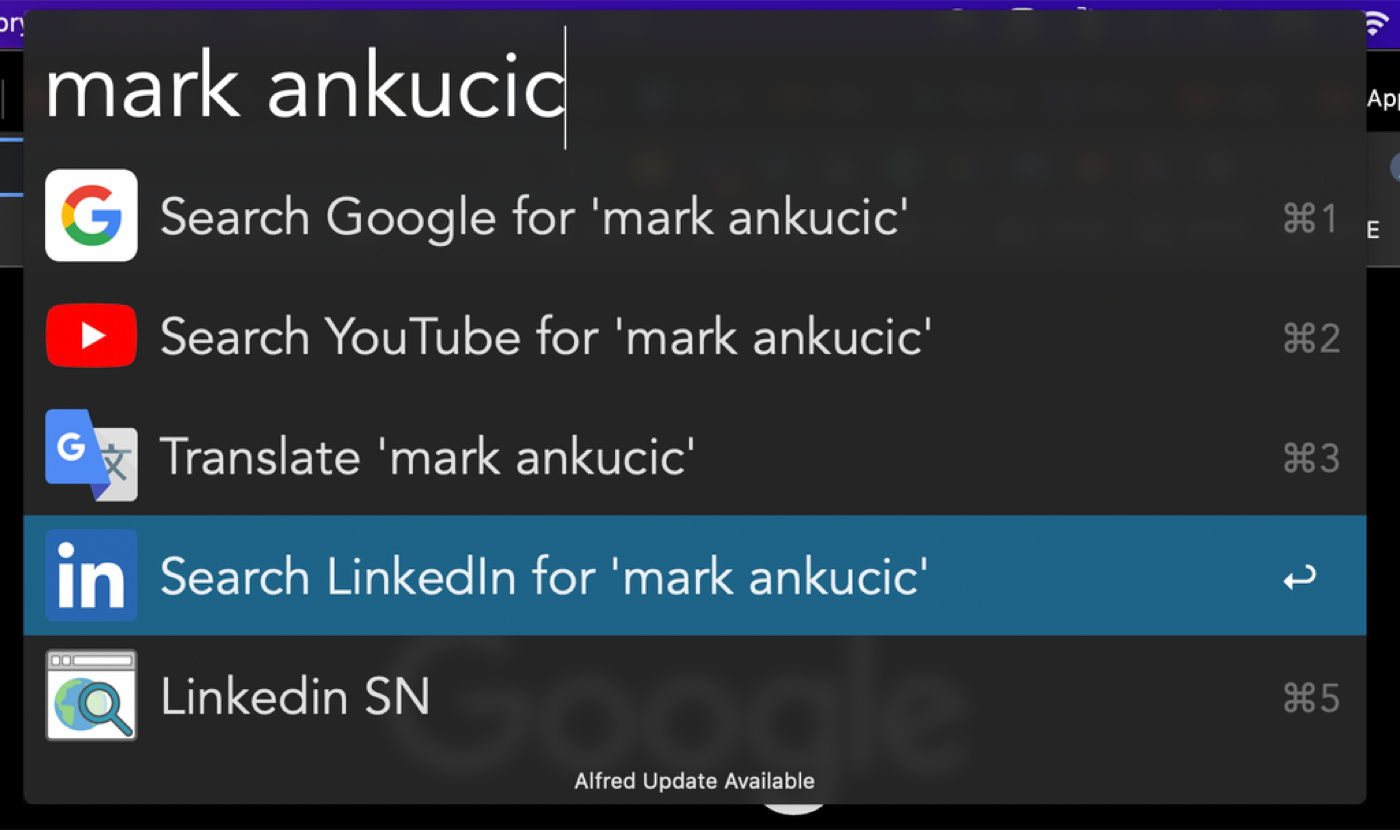
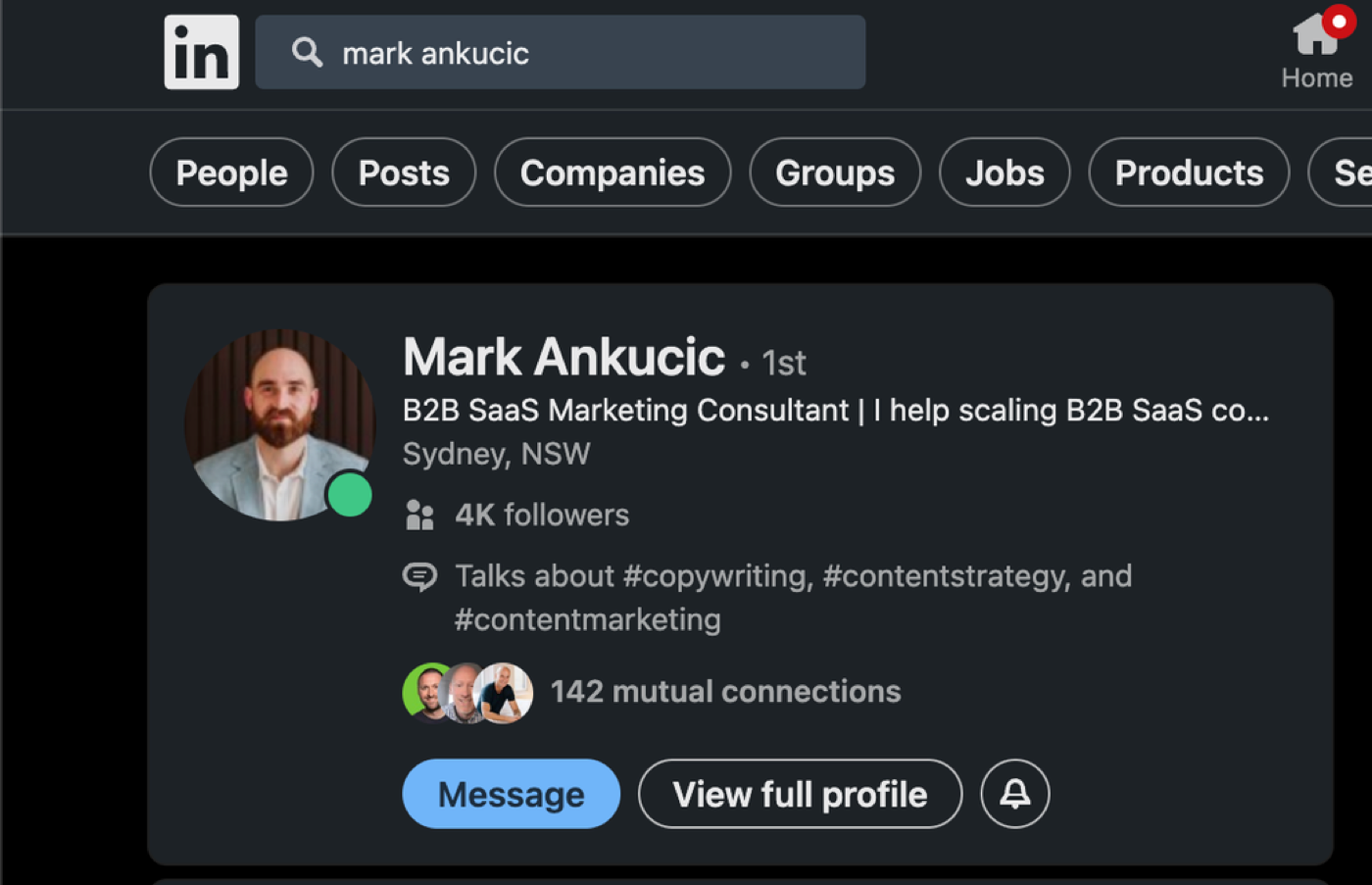
- To search for someone on LinkedIn click number 4 (cmd + 4):
Task Management
Tool: ClickUp
I like ClickUp for this, as it has a ton of features for its price.
I have used nearly all of the other task management tools and they all pretty much do the same thing.
Just make sure you are using one otherwise your marketing planning will get disorganised, fast.
Use it to:
- Delegate tasks to contractors
- Organise your own brain
- Create & store SOPs
- Create marketing plans & timelines
Here’s an example of how I’ve structured my Clickup for each of my clients and then for internal business operations:
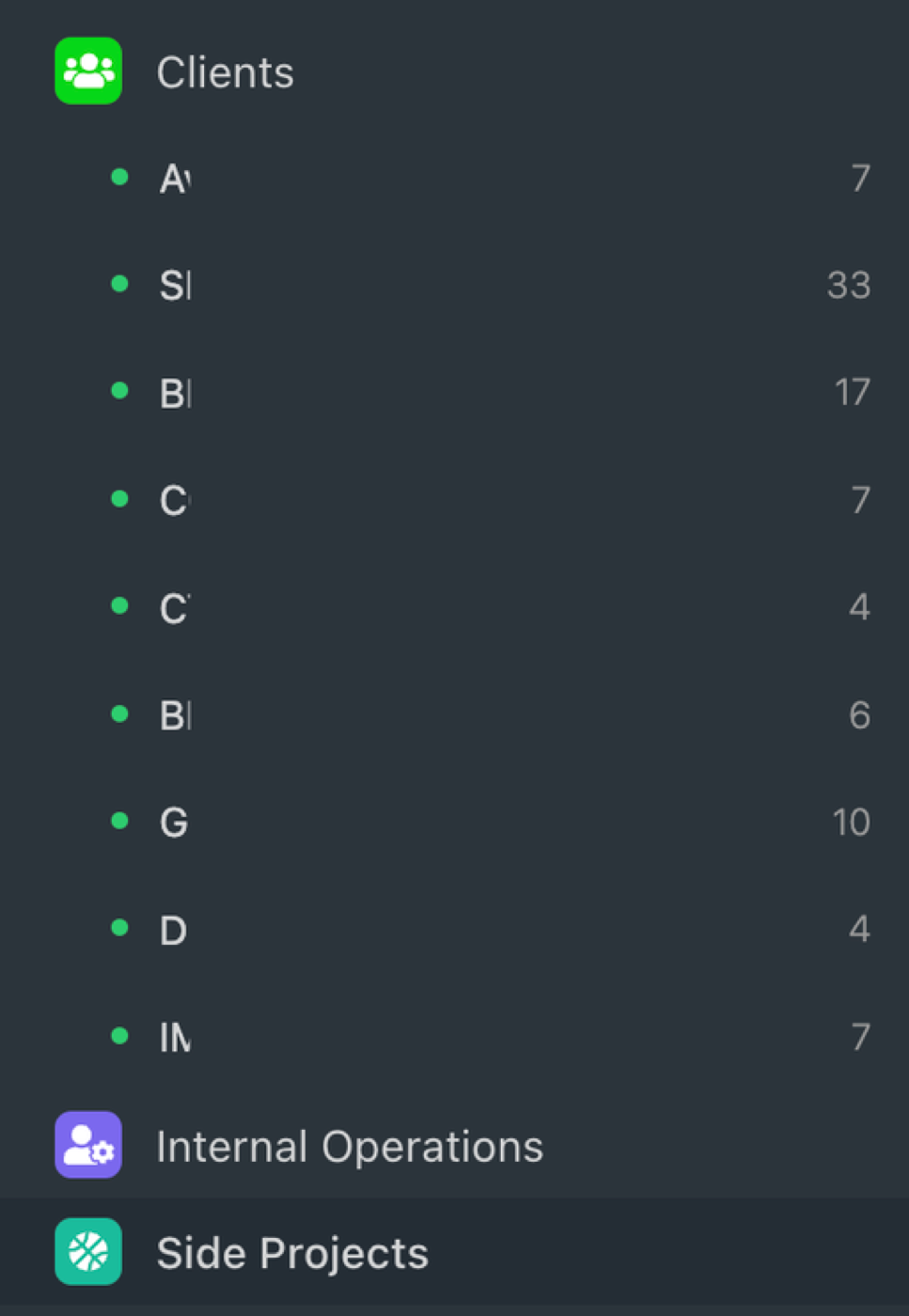
Having a place for tasks like this just helps you be able to chip away at bigger tasks that take more than a day and need multiple people involved.
Try to keep discussions that take more than say a few minutes or hours here instead of on a direct messaging app like Slack.
That brings us nicely on to…
Direct Message Apps
Tool: Slack
I live and die by Slack. It’s the best DM/instant messaging tool for work.
Since they added audio & video functionality too, it’s made providing nuanced feedback, reports & summaries to clients/freelancers a breeze.
When to Use Slack?
These are the only 2 times you should use Slack:
- Time-sensitive information.
- Back-and-forth discussion
Try to avoid using it for:
- Delegating tasks
How to Use It?
Channels
The best thing about Slack vs say Skype/Whatsapp, is its Channels.
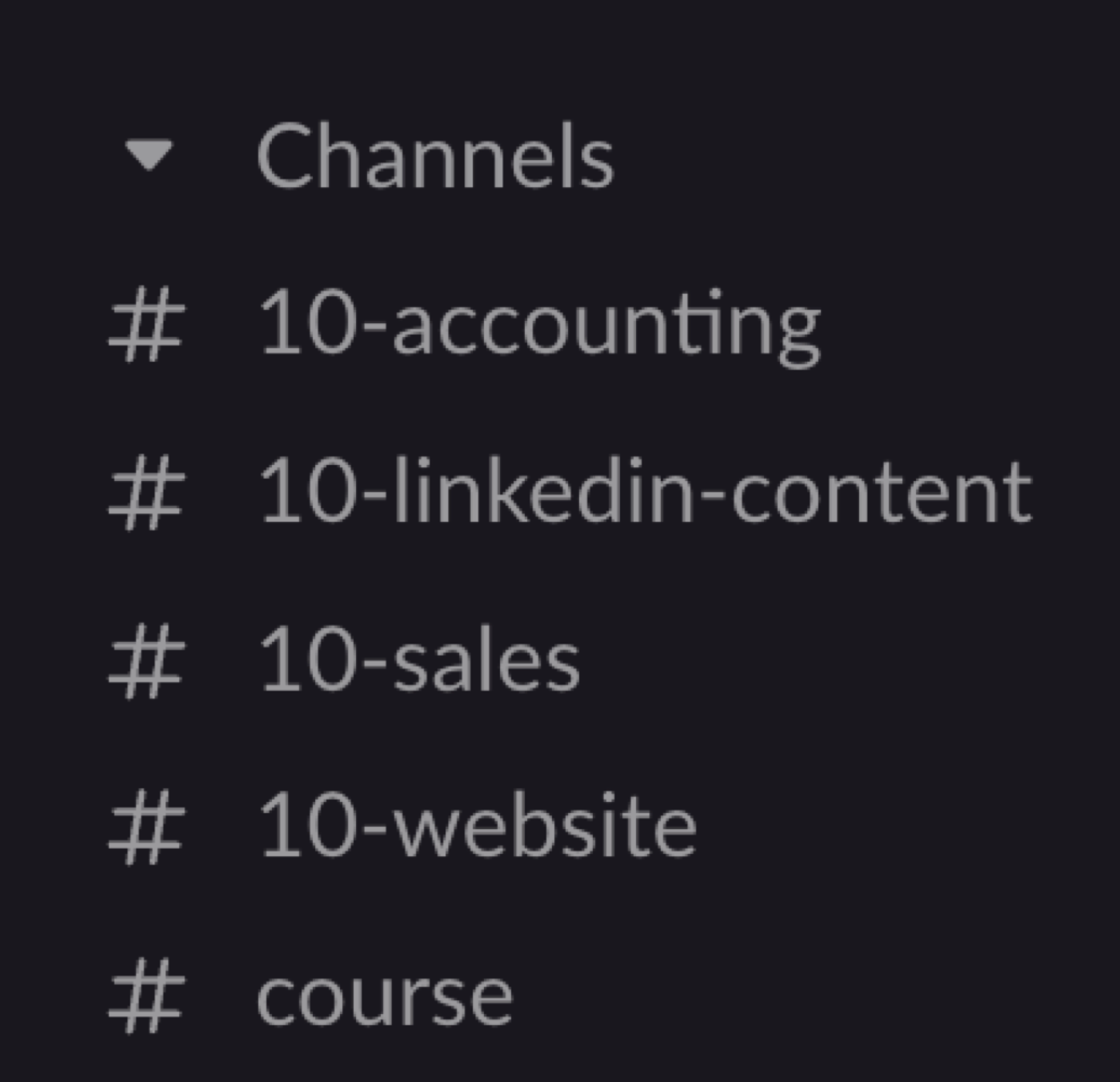
You can split out important topics of discussion by channel and keep your convos organised.
Some of my channels:
Forwarding Emails to Slack
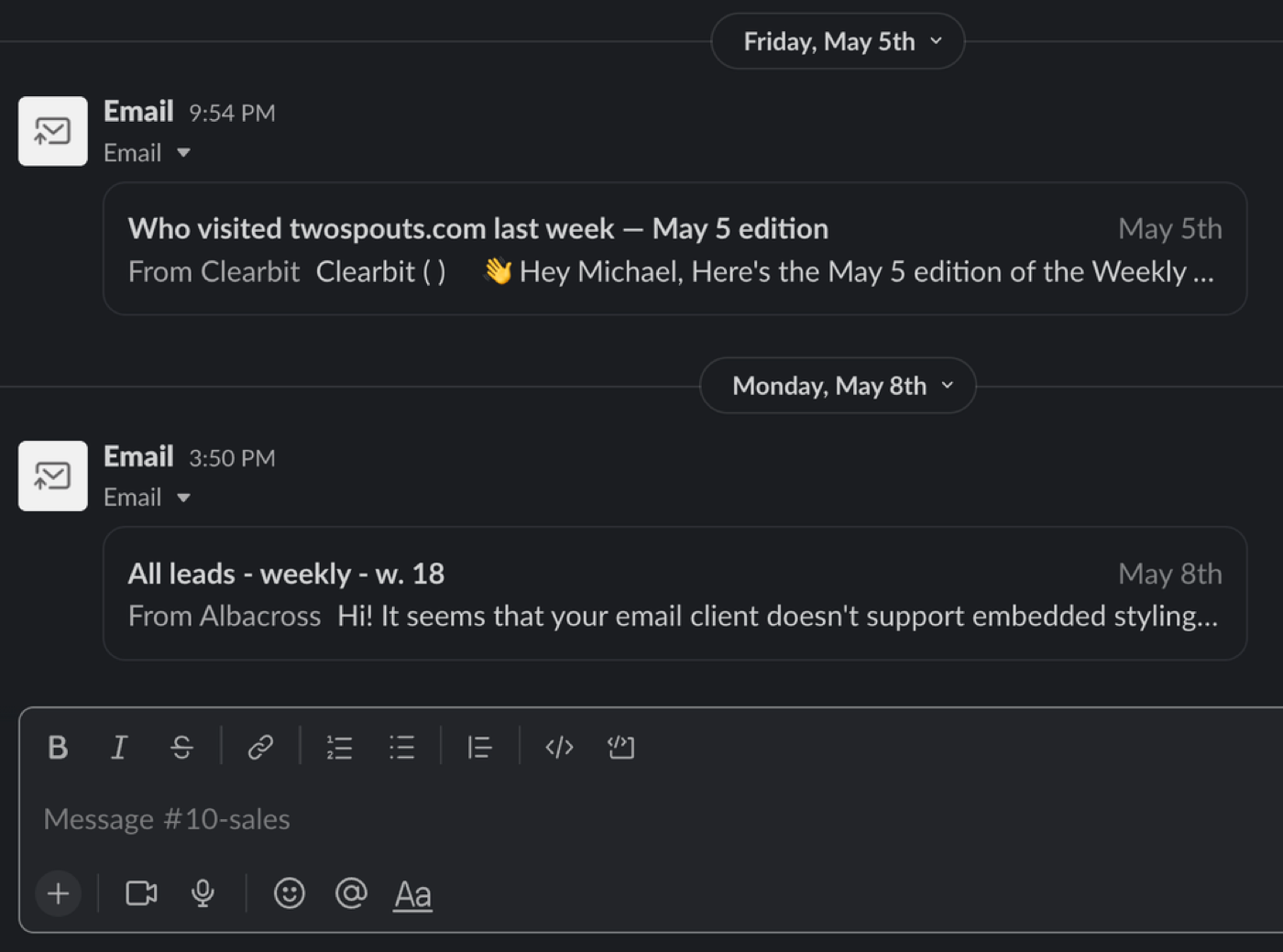
I have set up email forwarding to Slack for any of my clients that email me.
And you can do the same thing with regular email reports you receive from your marketing tools
For example, I forward a few lead reports to Slack, which a VA then uses:
Screenshots
Slack makes it super simple to send screenshots or upload images for quick feedback rounds.
Threads
Threads are amazing. Use them like mini-channels within a channel.
It helps to organise conversations especially when several people are involved.
Quick Emoji Reactions
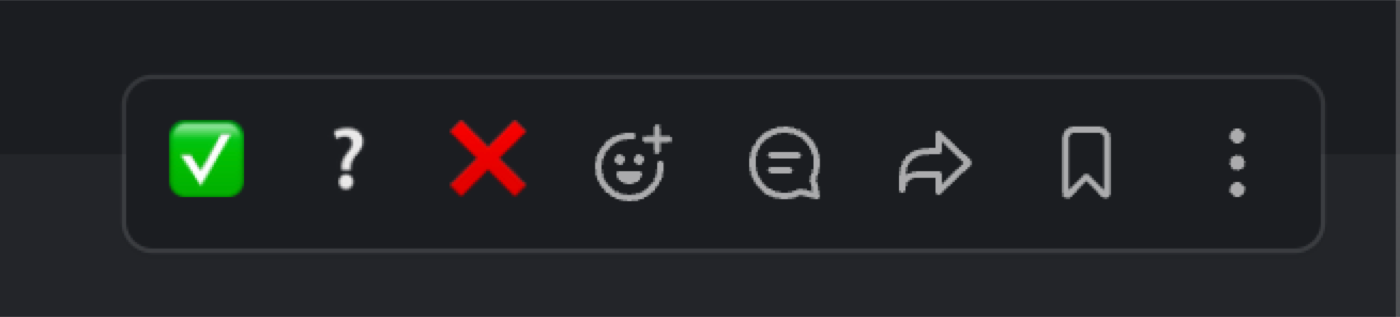
You can set up quick emoji reactions and get everyone you work with on the same page for how they should be used.
For example: If you have a COO and have a standard response they need to give like signoff on an email, or a new page going live you could ✅ as a standard response that they have approved.
Video & Audio Messages
A game changer for providing nuanced feedback.
I often use it when I’m giving feedback on a landing page or a design that isn’t quite right. It lets me explain with more detail than if I used text.
This feature is actually the main reason I am happy to pay for Slack.
Notification Feeds
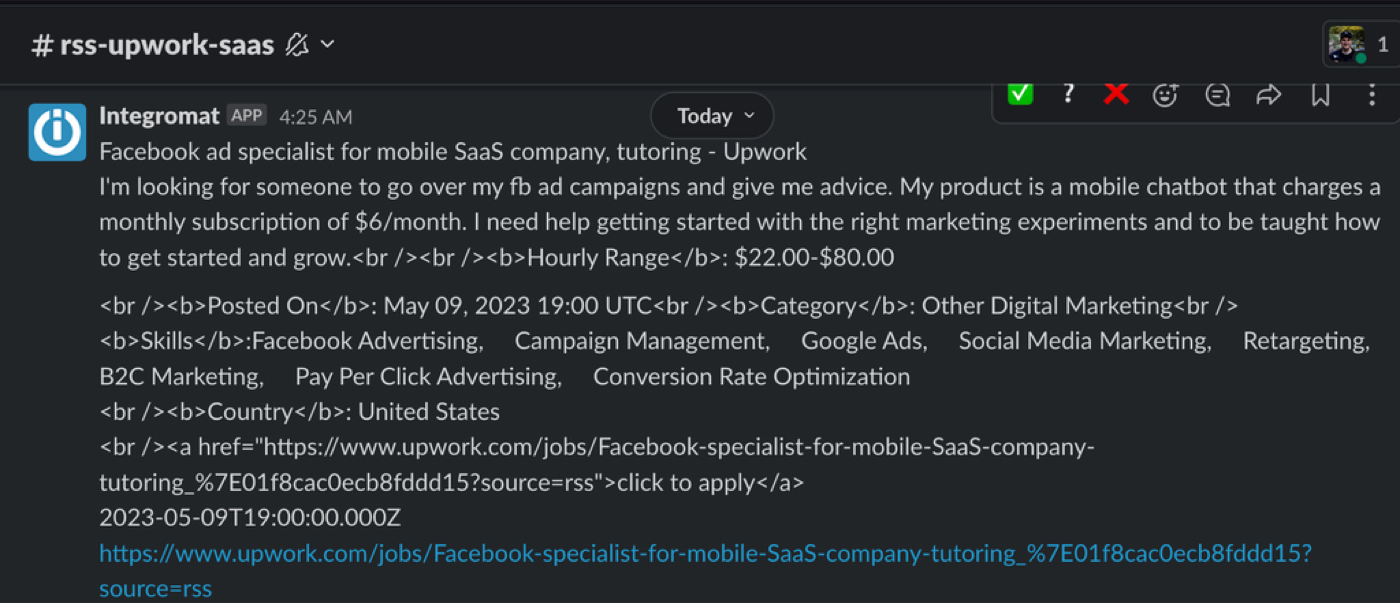
You can pipe in notifications from various apps into Slack so that you can take action on them.
Making Slack your central hub for communications:
Apps/Integrations
Slack has a vibrant app library and is super developer friendly. This means you can find or create the perfect app for a specific use case.
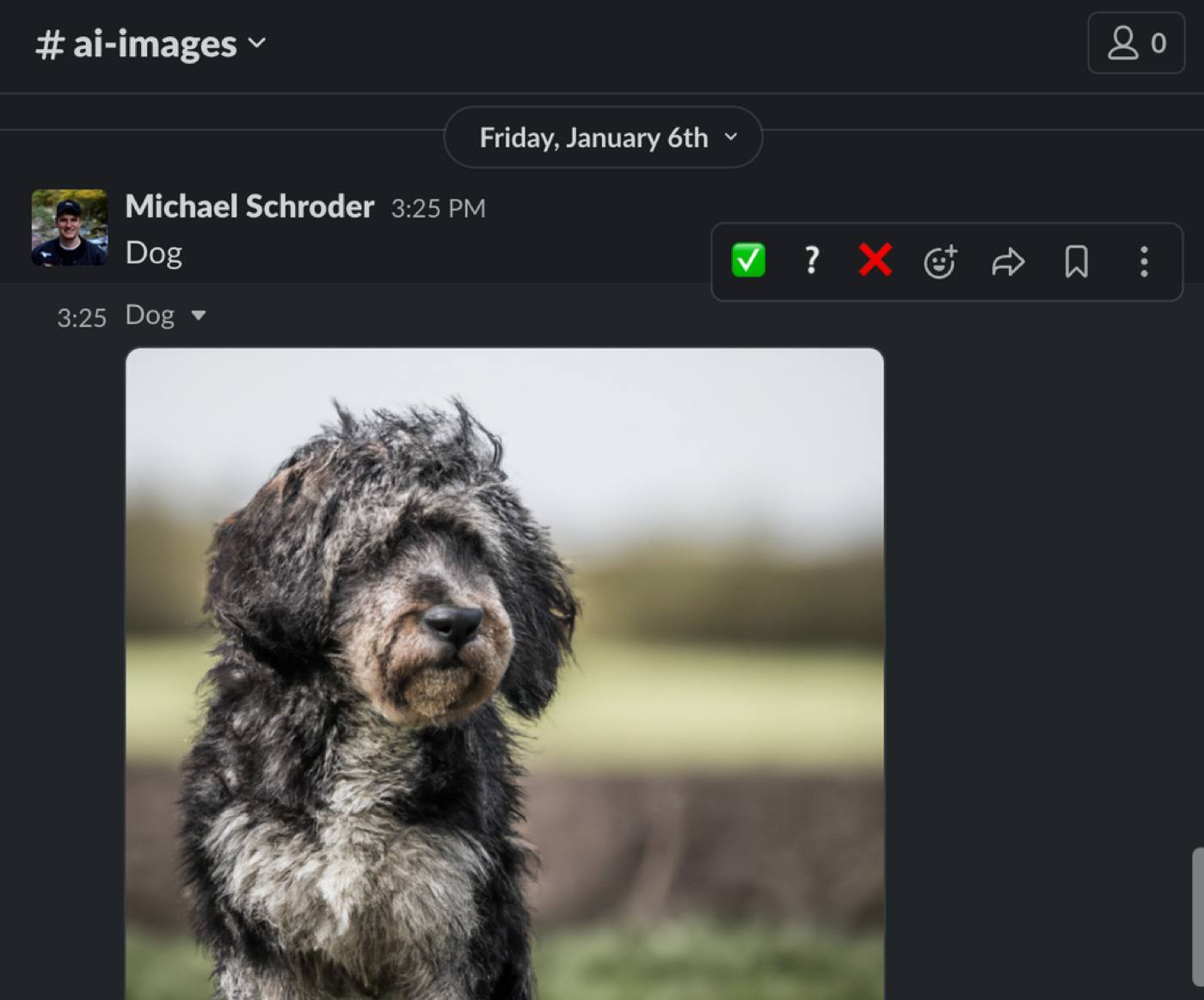
I made a bot that greets me every morning with an AI-generated Shiba Inu lol:
Or generate AI image generation right in Slack:
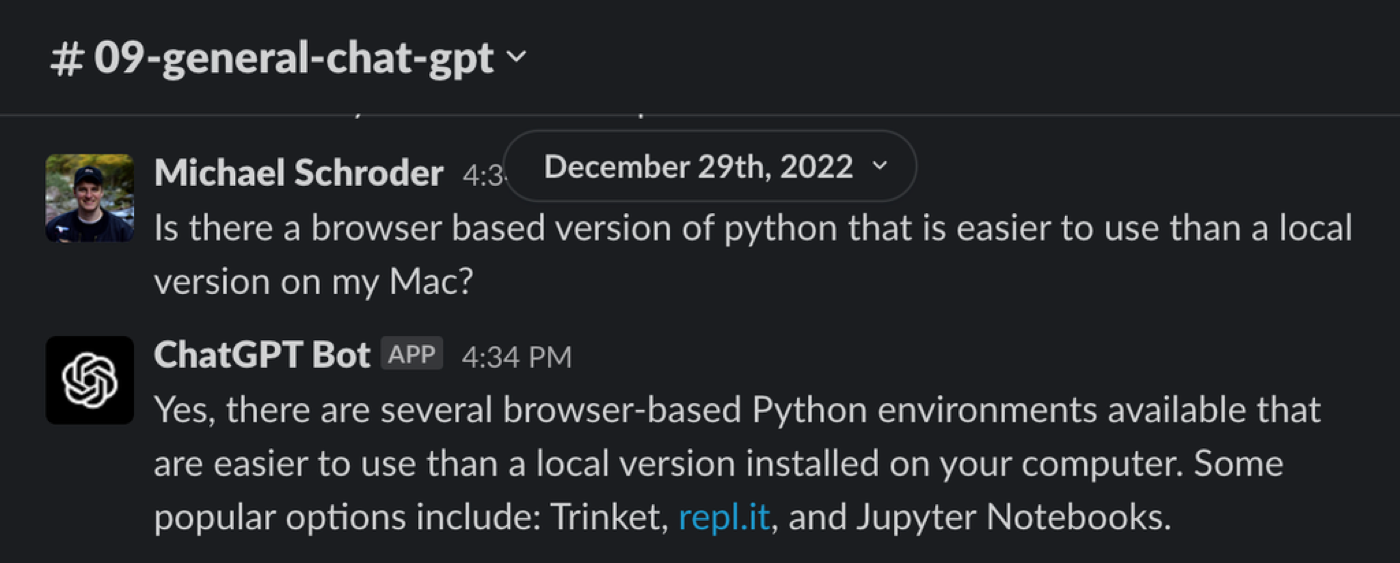
Or something more useful, an AI chatbot in Slack:
There’s way more you can do!
And lastly…Slack Makes Work More Fun

More info on this tool is in the Comms part of this course (coming soon…)
Async Video Messages
Tool: Loom
Such a useful tool for communicating async with people in different timezones.
I do use this tool way less now that Slack has built-in video messages, but it’s still a massive time saver, as it allows me:
- To skip a lot of meetings I would otherwise have to have with clients
- Send messages to people not in my Slack, like on LinkedIn
- Record ideas for Linkedin content and pull the transcript/use the raw video
As you can see in this course, I'm also using Loom as a lightweight video hosting platform for this course. And there are tonnes of other ways I have used it in my marketing funnels.
More info on this tool is in the Comms part of this course (coming soon…)
Wireframes/High-Level Planning
Tool: Whimsical
Use it to:
- Create funnel plans
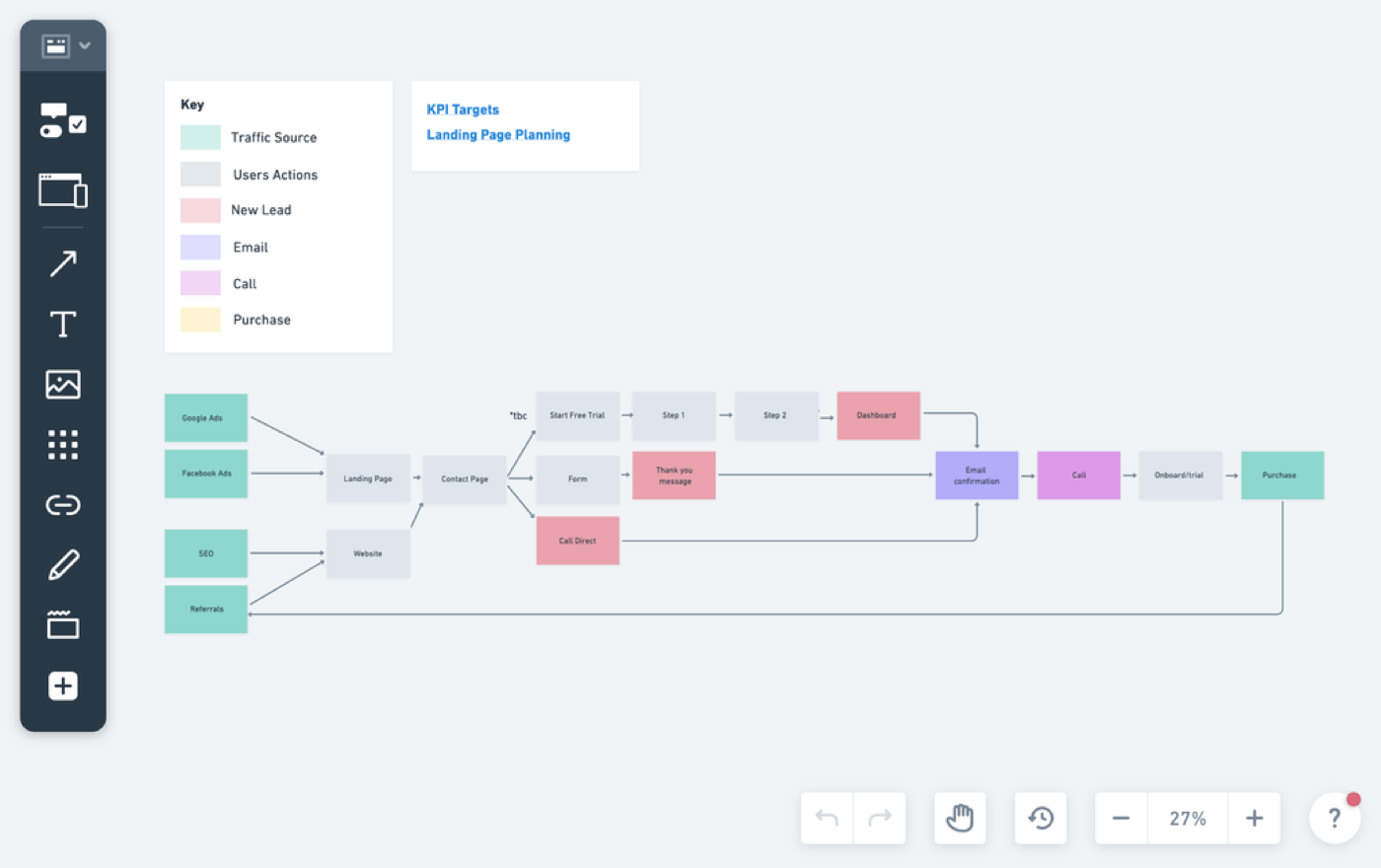
- Create landing page wireframes
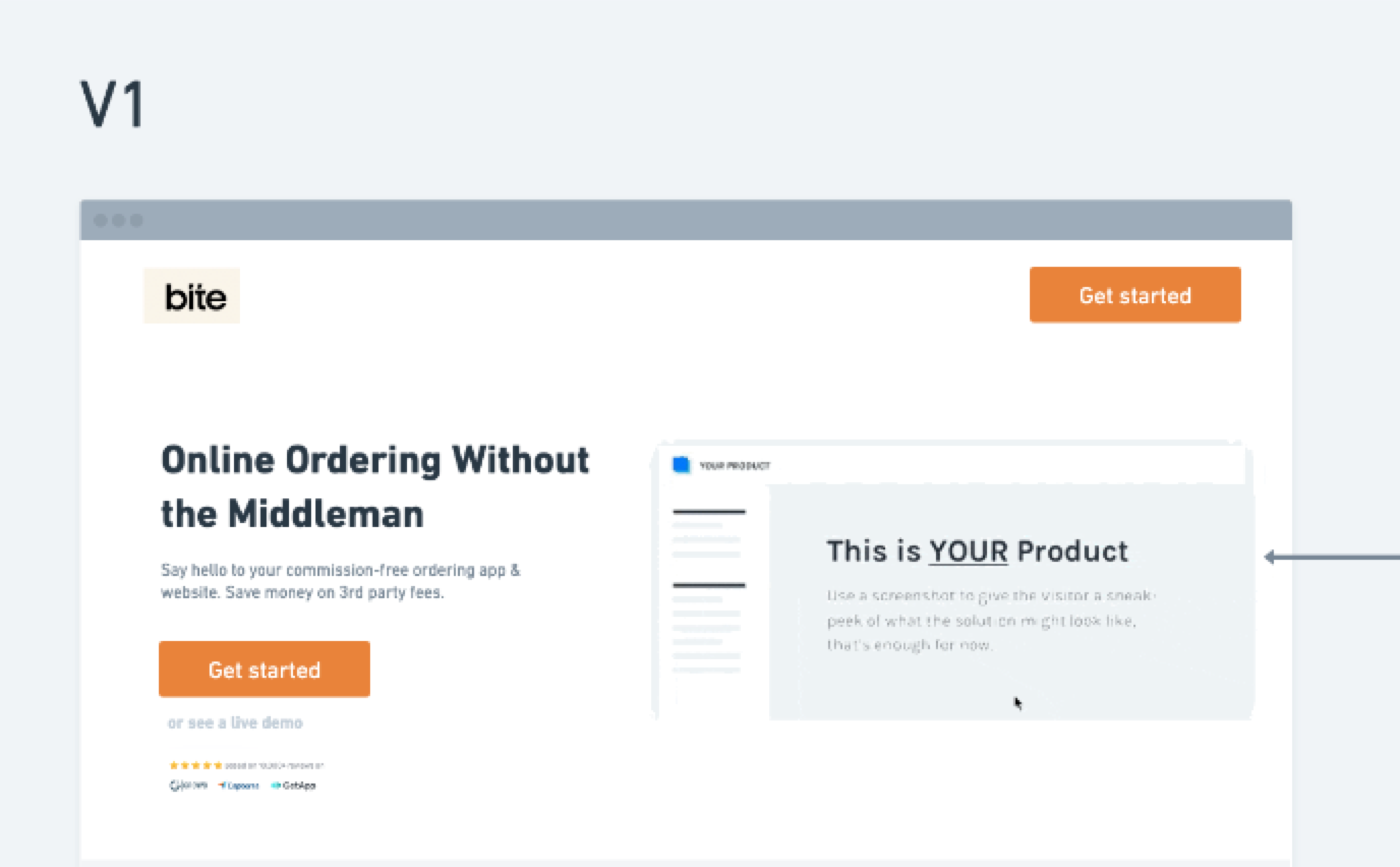
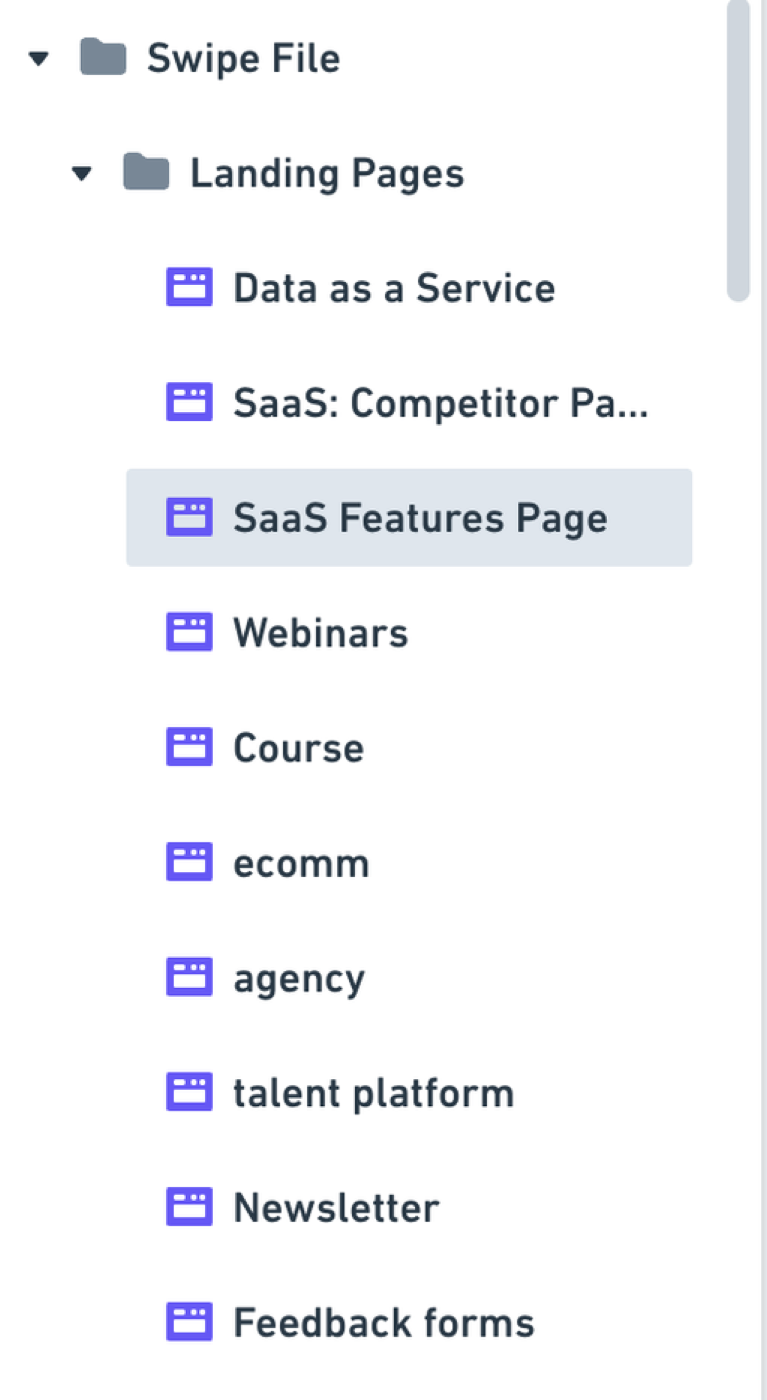
- Store your swipe file examples for ads/landing page examples:
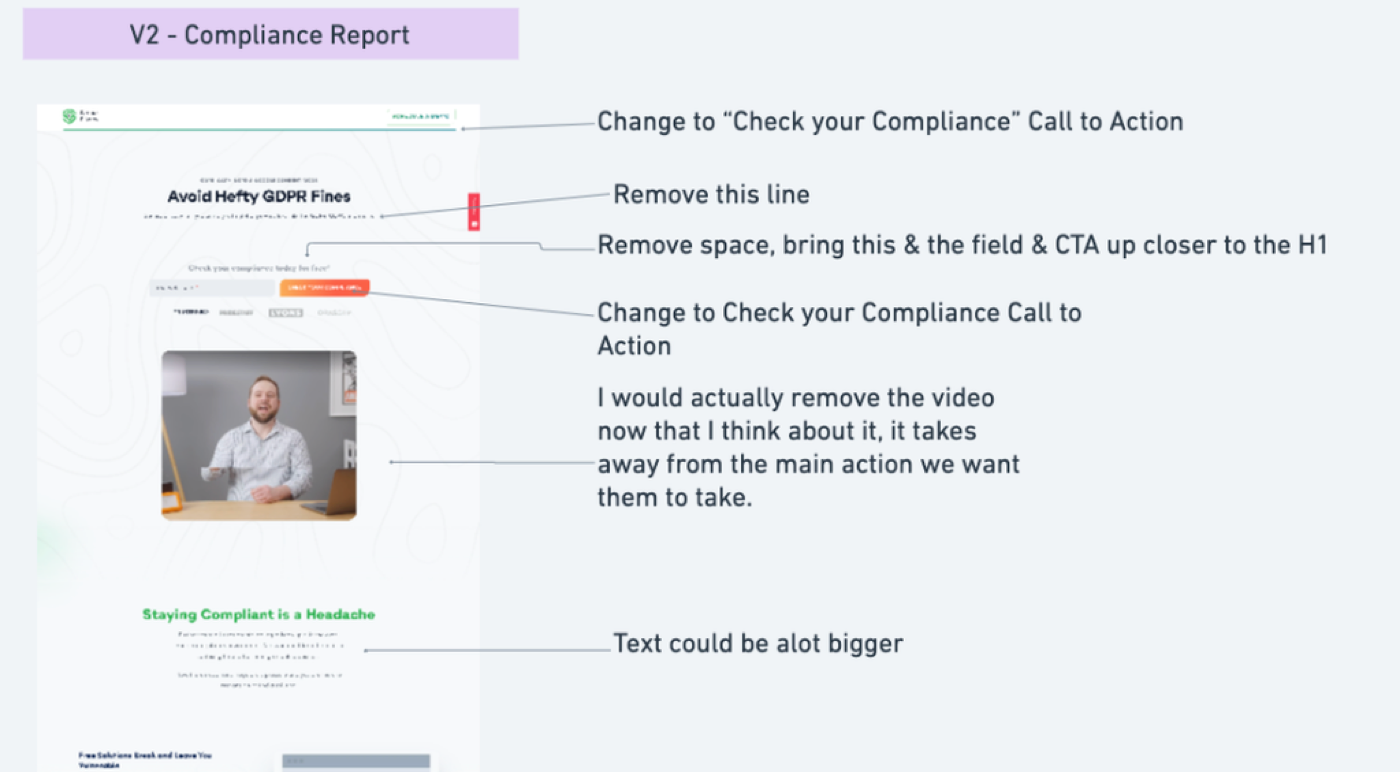
- Give feedback to clients and their devs on pages they give you
Password Management
Was a big fan of LastPass (and still use it), but not so much anymore since they had a pretty large data breach recently.
Still on the lookout for a better alternative but the options aren’t great.
But as long as you’re not storing banking and other sensitive info on there and you have a team/freelancers you work with, some kind of password-sharing tool is essential for saving time.
Shared folders:
This also means that it’s usually always best to create logins using an email & password so that you can at some point share those with other people. If you use your Google Account for log in, you won’t be able to.
More info on this tool is in the OPSEC part of this course (coming soon…)